Reviews
Setup and troubleshooting: label what gets touched in a panic
Setup and troubleshooting works from a recorded baseline: label what gets touched in a panic, know the five places a fault can be, and keep a usable fault log.
The hardest fault to fix is one on a network nobody wrote down. Every troubleshooting method assumes you know what normal looks like, where the cables go, and who to call. Most small businesses know none of those on the day it matters, because it was all set up by someone in an afternoon and never recorded.
This setup and troubleshooting guide is about recording the working state as much as fixing faults: the ten things to record while everything works, and the method those records make possible. Business internet covers what the service is supposed to deliver in the first place.
What to take away
- Record the working state on the day it worksa measurement, a diagram, the addresses, and who to call. You cannot tell what is wrong without knowing what right looked like.
- Two questions split almost every faultdoes it affect everyone, and does it affect everything?
- Keep a fault log. The third occurrence of the same fault is only visible if the first two were written down.
Record the working state
On the day the connection goes live, before anyone declares it done, capture:
Baseline setup checklist
- Baseline measurement, quiet and busy times
- One-page diagram of the network
- Provider addresses and settings stored
- Router and switch logins in password manager
- Who owns what, provider fault number
- What the lights mean when healthy
- What depends on the connection
- Failover arrangement and activation check
- A baseline measurement, taken at a quiet time and a busy time, from a wired computer, and kept. This is what "it is slow" will be compared with.
- A one-page diagramwhere the service enters the building, what box it lands in, what that connects to, and where the switches and access points are. A photograph of the cabinet with labels is fine.
- The addresses and settingsthe provider gave you, and any they configured on their equipment, stored somewhere that survives the person who set it up.
- The loginsfor the router and any managed switch, in a password manager the business controls, not in one person's head.
- Who owns whatwhich boxes are the provider's, which are yours, and which the provider will refuse to touch.
- The provider's fault number, account reference, and the service identifier they will ask for, written on the cabinet.
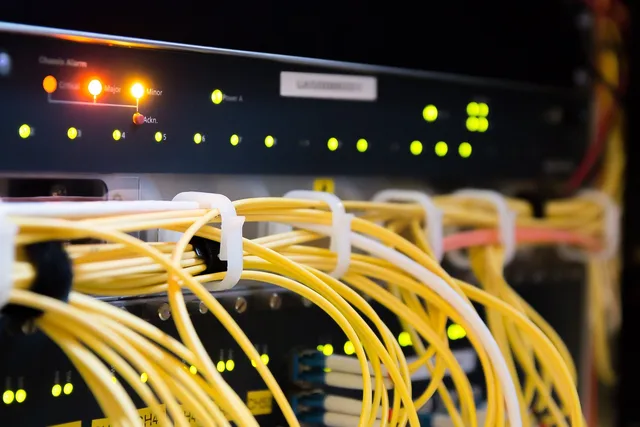
- What the lights meanon the provider's equipment when it is healthy. A photo of the normal state answers most first questions.
- What depends on the connectionthat is not obvious: the card terminal, the alarm, the door entry, the phone system.
- The failover arrangement, if any, and how you would know it had activated.
- The date and the nameof who set it up.
Half an hour. Most of the troubleshooting below is impossible without it, and the problems it makes tractable are set out in business internet troubleshooting.
Label what will be touched in a panic
The provider's box, your router, the switch, the power supplies, and the
cable from the entry point to the router. Label each with what it is and whether it may be unplugged. The reason is that the first response to any fault is somebody pulling plugs in the cabinet, and the second most common cause of a long outage is that they pulled the wrong one.
Five places a fault can be
| Segment | Symptom that points here | The one test |
|---|---|---|
| The device | One person affected, everything for them | Try another device on the same port or wireless name |
| The local network | Some people or one area affected | Move a known-good laptop to a wired port at the switch |
| The router | Everyone affected, provider lights normal | Power-cycle it once, then check whether it holds the connection |
| The line and provider equipment | Everyone affected, provider lights abnormal | Report it, with the light state and the baseline in hand |
| Beyond the provider | One service or site unreachable, others fine | Try the same thing from a mobile on cellular |
The table is not a full method. It is the first fork, and it puts you in the
Five fault segments
Segment
- The device
- One person affected
- The local network
- Some people or one area
- The router
- Everyone affected, lights normal
- Line and provider equipment
- Everyone affected, lights abnormal
- Beyond the provider
- One service or site unreachable
Symptom
- The device
- Try another device
- The local network
- Known-good laptop at switch
- The router
- Power-cycle once, check holds
- Line and provider equipment
- Report with light state
- Beyond the provider
- Try from mobile on cellular
The one test
- The device
- The local network
- The router
- Line and provider equipment
- Beyond the provider
The two questions that split most faults
Does it affect everyone? If one person cannot work and the rest can, the
Two questions that split faults
Does it affect everyone?
Look at router and line
Fault at their desk or path
Does it affect everything? If email works and the phones do not, or the web works and one supplier's portal does not, the connection is up and the problem is with a service, a route beyond your provider, or something on your side that treats that traffic differently. A connection that is "down" but lets you reach some things is not down; it is something more specific, and telling the provider which things fail is what gets it solved. The phone-specific version is in VoIP systems, where calls failing while the web works is the usual complaint.
What the provider will ask
Have these ready before you ring:
- The provider's fault number, account reference, and service identifier.
- Which people, devices, and services are affected, and whether the fault affects everyone or everything.
- When the fault began and what changed shortly beforehand.
- The current lights on the provider's equipment, compared with the photo of its normal state.
- The baseline and a current wired measurement if the complaint is about performance.
- The checks you have already made, including whether a restart changed anything.
What the provider will ask
- Account and service reference
- When it started, total or partial
- Lights compared with the photo
- Whether you power-cycled their box
- Anything changed on your side
- Baseline, if performance not outage
Then ask for a ticket reference, the classification they have given it, and when you will hear back. Write all three in the fault log. If the target time passes, that reference is what you escalate with.
A performance complaint without a baseline is an opinion. The regulator's Measuring Broadband America program is a fair model for keeping one: the same device, in the same place, measuring continuously rather than when somebody complains.
The fault log
Fault log fields
- Date
- Time
- What was observed
- What was done
- What fixed it
- Provider's reference
Its value is not the individual entry. It is the pattern. A connection that drops every Tuesday afternoon, a router that needs restarting every three weeks, a fault that follows a particular person's laptop around the building: none of these is visible in the moment and all of them are obvious in a log.
It is also the evidence you need when asking a provider to treat a repeat fault differently from a new one, and when deciding whether the provider should still be yours. Provider comparisons covers that decision.
One category deserves its own note. Never diagnose emergency calling by experiment. Confirm with the provider how those calls are routed and what address is passed, in writing; the FCC's guide to VoIP and 911 service explains why that address is a record, not a property of the line.
Most faults follow a change
When something stops working, the first question to ask the room is: what changed since it last worked?
What changed?
- Firmware updated itself
- New device on wrong port
- Someone tidied the cabinet
- Helpful reboot at wrong moment
- New cable looks identical
- Builders next door
- Provider change not mentioned
Most faults are recent changes wearing a disguise. The setup records let you compare now with then, and the fault log puts the change and the fault side by side.
When to stop and call
Stop when you have reached the provider's box and the lights are wrong, when
When to stop and call
Lights wrong at provider box?
Stop and call provider
Power-cycle did not hold?
Fallbacks are for this moment: if a second path exists, such as one over 5G business internet, switch to it and then raise the fault at leisure.
Common questions
Should I restart the router first?
Once, yes, after noting the state of the lights. Repeatedly, no. A router that needs restarting weekly is a fault in itself and belongs in the log.
The provider says the line is fine but it is slow. Who is right?
Possibly both. The line can be within its specification and your busy hour can exceed it. Your baseline, measured at busy and quiet times, is what settles the question, and why it was worth recording on day one.
Who should own this documentation?
The business, in a shared place, with a named person responsible for keeping it current. The IT contractor can maintain it; they should not be the only copy of it.
What do I do about the phones in a fault?
Whatever the routing says, which is why phone routing for an outage should be set at the provider in advance, not configured during one. If it was not, forward the main number to a mobile from the provider's portal as the first action, before diagnosis.
In this guide
- Setup and troubleshooting setup without the fillerSetup and troubleshooting setup without the filler: install order for demarc, cabling, patch panel, switch, router, power and labels, plus first fault checks.
- Internet setup for a move: seven questions and a handoverBusiness internet setup for a move: seven questions that surface a long build, and the written handover and tests to insist on before sign-off.
- Setup and troubleshooting reviews: how to check your installUse setup and troubleshooting reviews to test a new install, record pass/fail evidence, trace faults, keep an as-built record, and repeat a short annual check.
- Setup and Troubleshooting Security: Five Checks Before UseSetup and troubleshooting security starts with five pre-use checks, then shows how to verify a failed check, correct the gap, retest, and escalate an incident.